2018年4月10日火曜日

VagrantでDiffuse、Cinnamon Desktop環境、XRDPがインストールされた仮想マシン(Debian Stretch/9.3)を構築する

Diffuseで2つのテキストの差分を表示したり、マージしたりすることができます。

仮想マシンの構築方法

以下のVagrantfileを使用して、Diffuse、Cinnamon Desktop環境、XRDPをインストールした仮想マシン(Debian Stretch/9.3)を構築できます。
XRDPがインストールされているので、Windowsのリモートデスクトップで接続することができます。ユーザ名はVagrant、パスワードもVagrantでログオンできます。

Vagrantfile
VAGRANTFILE_API_VERSION = "2"

Vagrant.configure(VAGRANTFILE_API_VERSION) do |config|
  config.vm.box = "bento/debian-9.3"
  config.vm.hostname = "db93cinnamondiffuse"
config.vm.network "public_network", ip:"192.168.1.116", :netmask => "255.255.255.0"
  config.vm.provider :virtualbox do |vbox|
     vbox.name = "db93cinnamondiffuse"
     vbox.gui = true
     vbox.cpus = 4
     vbox.memory = 4096
  end
  config.vm.provision "shell", inline: <<-SHELL
apt-get update
#DEBIAN_FRONTEND=noninteractive apt-get -y -o Dpkg::Options::="--force-confdef" -o Dpkg::Options::="--force-confold" upgrade
apt-get -y install task-japanese
sed -i -e 's/# ja_JP.UTF-8 UTF-8/ja_JP.UTF-8 UTF-8/' /etc/locale.gen
locale-gen
update-locale LANG=ja_JP.UTF-8
localectl set-locale LANG=ja_JP.UTF-8
localectl set-keymap jp106
apt-get update
cat << EOF > /etc/default/keyboard
XKBMODEL="pc106"
XKBLAYOUT="jp"
XKBVARIANT=""
XKBOPTIONS=""
BACKSPACE="guess"
EOF
cat << EOF > /home/vagrant/.xsessionrc
export GTK_IM_MODULE=fcitx
export QT_IM_MODULE=fcitx
export XMODIFIERS="@im=fcitx"
sed -i -e "s/^EnabledIMList.*$/EnabledIMList=fcitx-keyboard-jp:True,mozc:True,fcitx-keyboard-us:False/" /home/vagrant/.config/fcitx/profile
fcitx-remote -r
fcitx -r -d
EOF
chown vagrant:vagrant .xsessionrc
apt-get -y install  xrdp fcitx-mozc task-cinnamon-desktop tigervnc-standalone-server

apt-get -y install build-essential module-assistant dkms
wget http://download.virtualbox.org/virtualbox/5.2.6/VBoxGuestAdditions_5.2.6.iso
mount -o loop -t iso9660 VBoxGuestAdditions_5.2.6.iso /media/
/media/VBoxLinuxAdditions.run


im-config -n fcitx
sudo -u vagrant bash -i -c "export DISPLAY=:0.0 && fcitx -r"

cp /etc/xrdp/xrdp.ini /etc/xrdp/xrdp.ini.org
cat /etc/xrdp/xrdp.ini.org | gawk '/\\[Globals\\]/,/\\[Xorg\\]/' | sed -e 's/\\[Xorg\\]//' > /etc/xrdp/xrdp.ini
cat << EOF >> /etc/xrdp/xrdp.ini
[Xvnc]
name=Xvnc
lib=libvnc.so
username=ask
password=ask
ip=127.0.0.1
port=-1
EOF
systemctl restart xrdp
systemctl enable xrdp


# install diffuse
apt-get -y install python-gtk2-dev
wget https://sourceforge.net/projects/diffuse/files/diffuse/0.4.8/diffuse_0.4.8-1_all.deb
dpkg -i diffuse_0.4.8-1_all.deb


init 5
SHELL
end

〇Diffuseの画面

関連情報

・diffuseのホームページ
https://sourceforge.net/projects/diffuse/

・Diffuseに関する他の記事はこちらを参照してください。

VagrantでVanilla Forums2.5.1、MariaDBがインストールされた仮想マシン(Ubuntu16.04)を構築する

Vanilla ForumsはPHP製の掲示板ソフトウェアです。
以下のVagratfileを使用して、Vanilla ForumsとMariaDBをインストールされた仮想マシン(Ubuntu16.04) を構築する事ができます。
仮想マシン構築後、http://192.168.1.106/vanillaforums/にアクセスして初期設定を行います。

Vagrantfile
VAGRANTFILE_API_VERSION = "2"

Vagrant.configure(VAGRANTFILE_API_VERSION) do |config|
  config.vm.box = "bento/ubuntu-16.04"
  config.vm.hostname = "ub1604vanillaforums251mariadb"
  config.vm.provider :virtualbox do |vbox|
     vbox.name = "ub1604vanillaforums251mariadb"
     vbox.cpus = 2
     vbox.memory = 2048
     vbox.customize ["modifyvm", :id, "--nicpromisc2","allow-all"]
  end
config.vm.network "private_network", ip: "192.168.55.107", :netmask => "255.255.255.0"
config.vm.network "public_network", ip:"192.168.1.107", :netmask => "255.255.255.0"
  config.vm.provision "shell", inline: <<-SHELL
# update packages
apt-get update
#DEBIAN_FRONTEND=noninteractive apt-get -y -o Dpkg::Options::="--force-confdef" -o Dpkg::Options::="--force-confold" upgrade

# install mariadb
echo "mariadb-server-10.0 mysql-server/root_password password root" | sudo debconf-set-selections
echo "mariadb-server-10.0 mysql-server/root_password_again password root" | sudo debconf-set-selections
apt-get -y install mariadb-server
mysql -uroot -proot -e "CREATE DATABASE vanillaforums DEFAULT CHARACTER SET utf8mb4;"
mysql -uroot -proot -e "CREATE USER vanillaforums@localhost IDENTIFIED BY 'vanillaforums';"
mysql -uroot -proot -e "GRANT ALL PRIVILEGES ON vanillaforums.* TO 'vanillaforums'@'localhost';"
mysql -uroot -proot -e "FLUSH PRIVILEGES;"
echo "sql_mode=NO_ENGINE_SUBSTITUTION" >> /etc/mysql/mysql.conf.d/mysqld.cnf
systemctl restart mysql.service

apt-get -y install software-properties-common
add-apt-repository ppa:ondrej/php
apt-get update
apt-get -y install apache2 libapache2-mod-php7.1
apt-get -y install php7.1-gd php7.1-json php7.1-mysql php7.1-pdo php7.1-curl php7.1-mbstring
apt-get -y install php7.1-mcrypt php7.1-xml php7.1-zip php7.1-intl

# install vanillaforums
apt-get -y install unzip
wget https://open.vanillaforums.com/get/vanilla-core-2.5.1.zip
unzip vanilla-core-2.5.1.zip
mv vanilla-2.5.1 /opt/vanillaforums
chown -R www-data:www-data /opt/vanillaforums
ln -s  /opt/vanillaforums /var/www/html

service apache2 restart
echo 'access http://192.168.1.107/vanillaforums/'
echo 'db user:vanillaforums  password:vanillaforums  db:vanillaforums'
SHELL
end

〇Vanilla Forumsの初期設定画面


〇Vanilla Forumsの画面


○関連情報
・Vanilla Forumsに関する他の情報はこちらを参照してください。

2018年4月9日月曜日

dockerでJupyter Notebook、MariaDBがインストールされたコンテナのイメージを作成する

Jupyter Notebookでインタラクティブなコンピューティング環境を提供する事ができます。
以下の手順で、Jupyter Notebook、MariaDBのコンテナを構築・実行します。

○構築方法
1. mysqlclientを追加したJupyter Notebookイメージの作成(Dockerfileがあるフォルダで実行)
docker build -t scipy-notebook-mariadb .

Dockerfile
FROM jupyter/scipy-notebook
ENV TZ=Asia/Tokyo
USER root
RUN apt-get update \
  && apt-get -y install apt-file \
  && apt-get -y install software-properties-common \
  && apt-key adv --recv-keys --keyserver hkp://keyserver.ubuntu.com:80 0xF1656F24C74CD1D8 \
  && add-apt-repository 'deb [arch=amd64,i386,ppc64el] http://ftp.yz.yamagata-u.ac.jp/pub/dbms/mariadb/repo/10.2/ubuntu xenial main' \
  && apt-get update \
  && apt-get -y install libmariadbclient-dev \
  && pip install mysqlclient \
  && apt-get clean
USER $NB_UID

2. Jupyter NotebookとMySQLコンテナの構築・実行(docker-compose.ymlがあるフォルダで実行)
docker-compose up -d

docker-compose.yml
version: "2"
services:
  scipy-notebook:
    image: scipy-notebook-mariadb
    container_name: "scipy-notebook-mariadb"
    volumes:
      - "scipy-notebook-data:/home/jovyan/work"
    ports:
      - "8888:8888"
    environment:
      JUPYTER_TOKEN: jupyter
    depends_on:
      - db
  db:
    image: mariadb:10.2
    command: mysqld --character-set-server=utf8mb4 --collation-server=utf8mb4_unicode_ci
    container_name: "scipy-notebook-db"
    volumes:
      - "db-data:/var/lib/mysql"
    ports:
      - "3306:3306"
    environment:
        MYSQL_DATABASE: test
        MYSQL_ROOT_PASSWORD: test
volumes:
  db-data:
    driver: local
  scipy-notebook-data:
    driver: local

※Jupyter Labを使用したい場合は、以下のようにenvironmentにJUPYTER_ENABLE_LAB: 1を追加します。
    environment:
      JUPYTER_TOKEN: jupyter
      JUPYTER_ENABLE_LAB: 1

3.ブラウザから以下のURLにアクセス
http://<Dockerホスト名またはIP>:8888/?token=jupyter

○動作確認用コード
import MySQLdb

con = MySQLdb.connect(
  user='root',
  passwd='test',
  host='db',
  db='test')

try:
  cur= con.cursor()
  cur.execute("create table messages (message_id integer, message varchar(100))")
  cur.execute("insert into messages values (100, 'hello world!')")
  sql = "select message_id, message from messages"
  cur.execute(sql)

  for row in cur.fetchall():
    print(row)

except MySQLdb.Error as er:
    print('MySQLdb.Error:', er)
cur.close
con.close

○Jupyter Notebookの画面

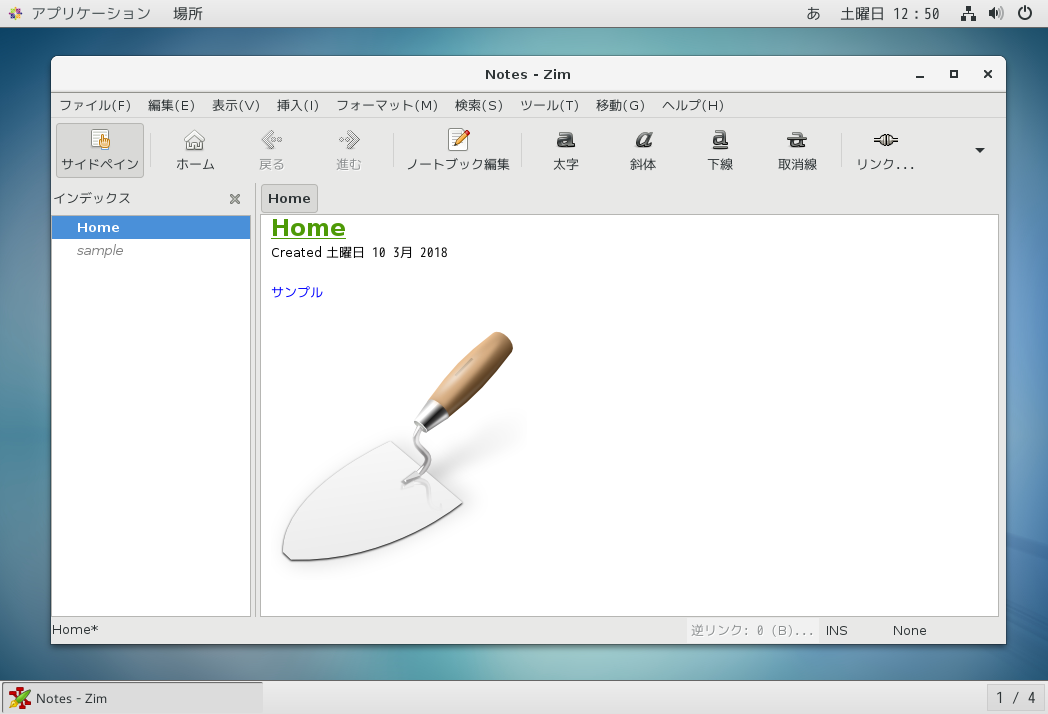
VagrantでZim、Xfce Desktop環境、XRDPがインストールされた仮想マシン(CentOS7.4)を構築する

Zim はデスクトップWikiアプリです。
以下のVagrantfileを使用して、Zim、Xfce Desktop環境、XRDPをインストールした仮想マシン(CentOS7.4) を構築できます。
XRDPがインストールされているので、Windowsのリモートデスクトップで接続することができます。ユーザ名はVagrant、パスワードもVagrantでログオンできます。

Vagrantfile
VAGRANTFILE_API_VERSION = "2"

Vagrant.configure(VAGRANTFILE_API_VERSION) do |config|
  config.vm.box = "bento/centos-7.4"
  config.vm.hostname = "co74xfcezim"
config.vm.network :public_network, ip:"192.168.1.117"
  config.vm.provider :virtualbox do |vbox|
     vbox.name = "co74xfcezim"
     vbox.gui = true
     vbox.cpus = 4
     vbox.memory = 4096
  end
  config.vm.provision "shell", inline: <<-SHELL
yum -y install wget

# 日本語のロケールを設定
localectl set-locale LANG=ja_JP.UTF-8

# GUIに関連するパッケージをインストール
sudo yum -y groupinstall "Server with GUI"
# 不要なダイアログを表示されないようにする
sudo sh -c "echo 'X-GNOME-Autostart-enabled=false' >> /etc/xdg/autostart/gnome-welcome-tour.desktop"
sudo sh -c "echo 'X-GNOME-Autostart-enabled=false' >> /etc/xdg/autostart/gnome-software-service.desktop"
sudo sh -c "echo 'X-GNOME-Autostart-enabled=false' >> /etc/xdg/autostart/gnome-settings-daemon.desktop"
sudo systemctl disable initial-setup-graphical.service
sudo systemctl disable initial-setup-text.service

sudo systemctl set-default graphical.target

# いったんAutomatic Loginモードに変更
cp /etc/gdm/custom.conf /etc/gdm/custom.conf.org
cat << EOF > /etc/gdm/custom.conf
# GDM configuration storage

[daemon]
AutomaticLogin=vagrant
AutomaticLoginEnable=True
[security]

[xdmcp]

[chooser]

[debug]
# Uncomment the line below to turn on debugging
#Enable=true
EOF
cat << EOF >> /home/vagrant/.bashrc
if [[ -v DISPLAY ]]; then
   setxkbmap jp -model jp106
fi
EOF
service gdm restart
sleep 10
sudo -u vagrant sh -c "export DISPLAY=:0 && gsettings set org.gnome.desktop.input-sources sources \\"[('ibus', 'kkc'), ('xkb', 'us')]\\""
sudo -u vagrant sh -c "export DISPLAY=:0 && gsettings set org.gnome.desktop.wm.keybindings switch-input-source \\"['space']\\""
sudo -u vagrant sh -c "export DISPLAY=:0 && gsettings set org.gnome.settings-daemon.plugins.keyboard active false"

# Automatic Loginモード終了
cp -f /etc/gdm/custom.conf.org /etc/gdm/custom.conf
service gdm restart


# XRDPをインストールして、リモートデスクトップでログインできるようにする。
yum -y install epel-release
yum -y install xrdp tigervnc-server

chcon -t bin_t /usr/sbin/xrdp
chcon -t bin_t /usr/sbin/xrdp-sesman
sed -i "s/max_bpp=32/max_bpp=24/" /etc/xrdp/xrdp.ini
systemctl start xrdp.service
systemctl enable xrdp.service


# install zim
yum -y install Zim


telinit 5
SHELL
end

〇Zim


○関連情報
・Zimに関する他の記事はこちらを参照してください。

2018年4月8日日曜日

VagrantでWallabagとMariaDBがインストールされた仮想マシン(Ubuntu16.04)を構築する

Wallabagで気になったwebページをブックマークしておいて、後で読むことができます。
以下のVagrantfileを使用して、WallabagとMariaDBをインストールした仮想マシン(Ubuntu16.04)を構築できます。

Vagrantfile
VAGRANTFILE_API_VERSION = "2"

Vagrant.configure(VAGRANTFILE_API_VERSION) do |config|
  config.vm.box = "bento/ubuntu-16.04"
  config.vm.hostname = "ub1604wallabagmariadb"
  config.vm.provider :virtualbox do |vbox|
     vbox.name = "ub1604wallabagmariadb"
     vbox.cpus = 2
     vbox.memory = 2048
     vbox.customize ["modifyvm", :id, "--nicpromisc2","allow-all"]
  end
  config.vm.network "private_network", ip: "192.168.55.105", :netmask => "255.255.255.0"
  config.vm.network "public_network", ip:"192.168.1.105", :netmask => "255.255.255.0"
  config.vm.provision "shell", inline: <<-SHELL
# update packages
apt-get update
#DEBIAN_FRONTEND=noninteractive apt-get -y -o Dpkg::Options::="--force-confdef" -o Dpkg::Options::="--force-confold" upgrade

# install mariadb
echo "mariadb-server-10.0 mysql-server/root_password password root" | sudo debconf-set-selections
echo "mariadb-server-10.0 mysql-server/root_password_again password root" | sudo debconf-set-selections
apt-get -y install mariadb-server
mysql -uroot -proot -e "CREATE DATABASE wallabag DEFAULT CHARACTER SET utf8mb4;"
mysql -uroot -proot -e "CREATE USER wallabag@localhost IDENTIFIED BY 'wallabag';"
mysql -uroot -proot -e "GRANT ALL PRIVILEGES ON wallabag.* TO 'wallabag'@'localhost';"
mysql -uroot -proot -e "FLUSH PRIVILEGES;"

# install apache2 and php
apt-get -y install apache2 libapache2-mod-php7.0
apt-get -y install php7.0-gd php7.0-json php7.0-mysql php7.0-pdo php7.0-curl php7.0-mbstring
apt-get -y install php7.0-mcrypt php7.0-xml php7.0-zip php7.0-gd php7.0-tidy php7.0-bcmath

# install wallabag
mkdir -p wallabag
cd ~/wallabag

wget http://wllbg.org/latest-v2-package
tar xvfz latest-v2-package
mv wallabag-release-* /opt/wallabag


cat << EOF > /opt/wallabag/app/config/parameters.yml
parameters:
    database_driver: pdo_mysql
    database_driver_class: ~
    database_host: 127.0.0.1
    database_port: null
    database_name: wallabag
    database_user: wallabag
    database_password: wallabag
    database_path: null
    database_table_prefix: wallabag_
    database_socket: null
    database_charset: utf8
    domain_name: http://192.168.1.105
    mailer_transport: smtp
    mailer_host: 127.0.0.1
    mailer_user: null
    mailer_password: null
    locale: en
    secret: ovmpmAWXRCabNlMgzlzFXDYmCFfzGv
    twofactor_auth: true
    twofactor_sender: no-reply@wallabag.org
    fosuser_registration: true
    fosuser_confirmation: true
    from_email: no-reply@wallabag.org
    rss_limit: 50
    rabbitmq_host: localhost
    rabbitmq_port: 5672
    rabbitmq_user: guest
    rabbitmq_password: guest
    rabbitmq_prefetch_count: 10
    redis_scheme: tcp
    redis_host: localhost
    redis_port: 6379
    redis_path: null
    redis_password: null
    sites_credentials: {  }
EOF

cat << EOF > /etc/apache2/sites-available/wallabag.conf
<VirtualHost *:80>
    ServerName 192.168.1.105
    DocumentRoot /opt/wallabag/web
    ErrorLog /var/log/apache2/bag.local.error.log
    CustomLog /var/log/apache2/bag.local.access.log combined
    LogLevel warn
    <Directory /opt/wallabag/web>
        AllowOverride All
        Require all granted
    </Directory>
</VirtualHost>
EOF
cd /opt/wallabag
php bin/console wallabag:install --env=prod -n
chown -R www-data:www-data /opt/wallabag
ln -s  /opt/wallabag /var/www/html

a2ensite wallabag.conf
a2dissite 000-default.conf
systemctl reload apache2.service
echo 'access http://192.168.1.105/'
echo 'user:wallabag  password:wallabag'
SHELL
end

〇Wallabagの画面


○関連情報
・wallabagに関する他の記事はこちらを参照してください。

VagrantでJupyter LabとPostgreSQLをインストールした仮想マシン(Debian Stretch/9.3)を構築する

Jupyter Labでインタラクティブなコンピューティング環境を提供する事ができます。
以下のVagrantfileで、Jupyter LabとPostgreSQL をインストールした仮想マシン(Debian Stretch/9.3)を構築できます。

Vagrantfile
VAGRANTFILE_API_VERSION = "2"
Vagrant.configure(VAGRANTFILE_API_VERSION) do |config|
  config.vm.box = "bento/debian-9.3"
  config.vm.hostname = "db93jupyterlabpg"
  config.vm.provider :virtualbox do |vbox|
     vbox.name = "db93jupyterlabpg"
     vbox.cpus = 2
     vbox.memory = 2048
     vbox.customize ["modifyvm", :id, "--nicpromisc2","allow-all"]
  end
config.vm.network "private_network", ip: "192.168.55.107", :netmask => "255.255.255.0"
config.vm.network "public_network", ip:"192.168.1.107", :netmask => "255.255.255.0"
  config.vm.provision "shell", inline: <<-SHELL
apt-get -y install task-japanese
sed -i -e 's/# ja_JP.UTF-8 UTF-8/ja_JP.UTF-8 UTF-8/' /etc/locale.gen
locale-gen
update-locale LANG=ja_JP.UTF-8
localectl set-locale LANG=ja_JP.UTF-8
localectl set-keymap jp106
apt-get update
#DEBIAN_FRONTEND=noninteractive apt-get -y -o Dpkg::Options::="--force-confdef" -o Dpkg::Options::="--force-confold" upgrade

# install postgresql
apt-get -y install postgresql-9.6
echo "listen_addresses='*'" >> /etc/postgresql/9.6/main/postgresql.conf
echo "standard_conforming_strings=off" >> /etc/postgresql/9.6/main/postgresql.conf

#sed -i 's/host.*all.*all.*127.0.0.1/#host    all             all             127.0.0.1/g' /etc/postgresql/9.6/main/pg_hba.conf

echo "host    all         all         127.0.0.1/32          password" >> /etc/postgresql/9.6/main/pg_hba.conf
echo "host    all         all         192.168.1.0/24          password" >> /etc/postgresql/9.6/main/pg_hba.conf
echo "host    all         all         192.168.55.0/24          password" >> /etc/postgresql/9.6/main/pg_hba.conf

su - postgres << EOF
createdb -T template0 --locale=ja_JP.UTF-8 --encoding=UTF8 test
psql -c "
alter user postgres with password 'postgres';
create user test with password 'test';
grant all privileges on database test to test;
"
export PGPASSWORD=test
psql -h localhost -d test -U test -c "
create table messages (message_id integer not null, message varchar(100));
insert into messages values (1, 'hello world.');
insert into messages values (2, 'test message.');
"
EOF
echo "postgres:postgres" | chpasswd
systemctl restart postgresql.service

# install anaconda
wget https://repo.continuum.io/archive/Anaconda3-5.1.0-Linux-x86_64.sh
chmod +x Anaconda3-5.1.0-Linux-x86_64.sh
./Anaconda3-5.1.0-Linux-x86_64.sh -b -p /opt/anaconda
source /opt/anaconda/bin/activate
pip install --upgrade pip
pip install jupyterlab

# install psycopg2
apt-get -y install libpq-dev python-dev
pip install psycopg2-binary

useradd py
mkdir -p /home/py
chown -R py:py /home/py
sudo -u py bash -c "mkdir /home/py/.jupyter"
sudo -u py bash -c "cat << EOF > /home/py/.jupyter/jupyter_notebook_config.py
conf = get_config()
conf.NotebookApp.ip = '*'
conf.NotebookApp.open_browser = False
conf.NotebookApp.port = 8080
conf.NotebookApp.token = 'jupyter'
EOF"

cat << EOF > /etc/systemd/system/jupyter.service
[Unit]
Description=Jupyter notebook
[Service]
Type=simple
ExecStartPre=source /opt/anaconda/bin/activate
ExecStart=/opt/anaconda/bin/jupyter lab
User=py
Group=py
WorkingDirectory=/home/py
Restart=always
RestartSec=10
[Install]
WantedBy=multi-user.target
EOF
sudo systemctl enable jupyter
sudo systemctl start jupyter

echo 'access -> http://192.168.55.107:8080/?token=jupyter'
SHELL
end

〇動作検証用コード
import psycopg2

con = psycopg2.connect("dbname=test host=localhost user=test password=test")

try:
  cur= con.cursor()
  sql = "select message_id, message from messages"
  cur.execute(sql)

  for row in cur.fetchall():
    print(row)

except psycopg2.Error as er:
    print('psycopg2.Error:', er)
cur.close
con.close

〇Jupyter Labの画面


○関連情報
・psycopg2に関する他の記事はこちらを参照してください。

2018年4月7日土曜日

VagrantでH2 Databaseをインストールした仮想マシン(Debian Stretch/9.3)を構築する

H2 Databaseはjava製のデータベースです。
以下のVagrantfileを使用して、H2 Databaseがインストールされた仮想マシン(Debian Stretch/9.3)を構築する事ができます。

Vagrantfile
VAGRANTFILE_API_VERSION = "2"
Vagrant.configure(VAGRANTFILE_API_VERSION) do |config|
  config.vm.box = "bento/debian-9.3"
  config.vm.hostname = "db93h2db"
  config.vm.provider :virtualbox do |vbox|
     vbox.name = "db93h2db"
     vbox.cpus = 2
     vbox.memory = 2048
     vbox.customize ["modifyvm", :id, "--nicpromisc2","allow-all"]
  end
config.vm.network "private_network", ip: "192.168.55.107", :netmask => "255.255.255.0"
config.vm.network "public_network", ip:"192.168.1.107", :netmask => "255.255.255.0"
  config.vm.provision "shell", inline: <<-SHELL
apt-get -y install task-japanese
sed -i -e 's/# ja_JP.UTF-8 UTF-8/ja_JP.UTF-8 UTF-8/' /etc/locale.gen
locale-gen
update-locale LANG=ja_JP.UTF-8
localectl set-locale LANG=ja_JP.UTF-8
localectl set-keymap jp106
apt-get update
#DEBIAN_FRONTEND=noninteractive apt-get -y -o Dpkg::Options::="--force-confdef" -o Dpkg::Options::="--force-confold" upgrade

# install java
apt-get -y install openjdk-8-jdk

# download h2 database
apt-get -y install unzip
wget http://www.h2database.com/h2-2018-03-18.zip
unzip h2-2018-03-18.zip
mv h2 /opt
mkdir /opt/h2/data

# setup console as service
cat << EOF > /opt/h2/bin/h2env
H2CUSTOMJARS=
EOF

cat << EOF > /etc/systemd/system/h2.service
[Unit]
Description=H2 database
After=syslog.target network.target

[Service]
Type=simple
EnvironmentFile=/opt/h2/bin/h2env
WorkingDirectory=/opt/h2
ExecStart=/usr/bin/java -cp "/opt/h2/bin/h2-1.4.197.jar:\\$H2CUSTOMJARS" org.h2.tools.Console -tcp -tcpAllowOthers -web -webAllowOthers -pg -pgAllowOthers -baseDir /opt/h2/data

ExecStop=/usr/bin/kill -3 \\${MAINPID}

[Install]
WantedBy=multi-user.target
EOF
systemctl enable h2.service
systemctl start h2.service

echo '--------------------------------------------------'
echo 'access URL: http://192.168.55.107:8082/'
echo 'username: sa    default password: sa'
echo 'Driver class: org.h2.Driver'
echo 'JDBC URL: jdbc:h2:tcp://192.168.55.107/opt/h2/test'
SHELL
end

〇H2 Databaseの画面


○関連情報
・H2 Databaseに関する他の記事はこちらを参照してください。